The Memory Challenge: Why LLMs Need Help Remembering
If you’ve been building AI applications, you’ve probably noticed something frustrating — LLMs have terrible memory. Sure, ChatGPT and Claude seem to remember everything just fine, but that’s because their teams have already solved this problem. When you’re building your own app? You’re on your own.
Here’s what typically happens: you start building your AI app, everything’s going great, until you realize your LLM can’t remember anything beyond the current conversation. Need it to remember something from last week? Good luck with that.
Some folks try to solve this themselves. They store conversations in databases, build retrieval systems, or try to compress context in clever ways. I’ve been there — you end up spending more time managing memory than actually building your app’s features. The problem is pretty straightforward: LLMs just work with what’s in their context window. Managing what goes in and out of that window? That’s on you. And trust me, it gets messy fast.
Enter Letta: A Memory Management Solution for LLM Applications
This is where Letta comes in (it was called MemGPT before, by the way — the name comes from their research paper). Think of it as a memory management system for your LLM that actually makes sense. Instead of you having to figure out what to remember and what to forget, Letta handles all of that for you.
Here’s how it works. Letta uses two types of memory:
- Core memory — like RAM in your computer, it keeps the important stuff that’s needed right now
- Archival memory — like your hard drive, it stores everything else in a vector database that can be searched when needed
But what makes Letta really interesting is how it behaves like an agent. It follows what we call an “agentic loop”:
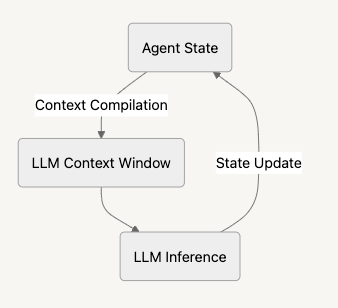
- Starts with its current state (what it knows and remembers)
- Compiles all that into a context window (like preparing what to think about)
- Sends this to the LLM to figure out what to do next
- Updates its state based on what the LLM decided
What’s cool about Letta is that it figures out on its own what to keep in core memory and what to move to archive. Your context window is getting full? No problem — Letta will automatically decide what to keep and what to store for later. You don’t have to write any code for:
- Counting tokens
- Deciding what to keep or throw away
- Building a system to find old conversations
- Figuring out how to compress information efficiently
This is super useful if you’re building an AI app that needs to have long conversations or remember things across different chat sessions. Instead of you having to manage all that, Letta just handles it.
Inside Letta’s Context Window: How Memory is Organized
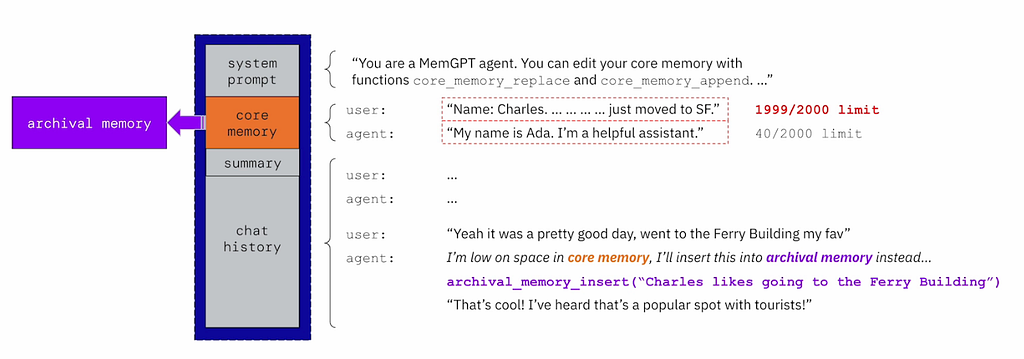
Here’s how Letta actually works under the hood. You know how LLMs have this context window where you put your prompt and get responses? Letta organizes this window (the blue box) really cleverly into different sections:
- System Prompt — this sits at the top and never moves. It’s like the agent’s instruction manual, telling it how to behave and what functions it can use (like core_memory_replace when it needs to update what it remembers)
- Core Memory — this is where it keeps important stuff it learns while talking to you. Things like “Oh, this user is Charles and he just moved to SF”. If this section gets too full, Letta will move older stuff to archival memory — kind of like moving files from RAM to your hard drive
- Summary — instead of keeping entire conversations, Letta summarizes older chats to save space, similar to how ChatGPT does it
- Chat History — this is just your recent messages that haven’t been summarized yet
Depending on which model you use the size of the context window can vary, but the idea is the same. Also, one thing is important is that underneath Letta does everything through function calls. Need to save something for later? It calls archival_memory_insert. Need to tell you something? It uses send_message. Even the responses you get are actually function calls under the hood, not just text output. This makes everything super consistent and easier to track what's happening.
Local Setup with Docker
Setting up Letta locally is straightforward with a single Docker command:
docker run \
  -v ~/.letta/.persist/pgdata:/var/lib/postgresql/data \
  -p 8283:8283 \
  -e OPENAI_API_KEY="your_openai_api_key" \
  letta/letta:latest
This command:
- Mounts a volume for PostgreSQL data persistence
- Exposes port 8283 for the Letta service
- Sets up OpenAI API key for model access
Letta supports multiple LLM providers through environment variables:
- ANTHROPIC_API_KEY for Claude models
- GEMINI_API_KEY for Google's Gemini
- OLLAMA_BASE_URL for local Ollama models
- VLLM_API_BASE for vLLM deployments
Once running, you can interact with Letta in several ways:
- HTTP requests directly to the service
- Official SDKs for Python or Node.js
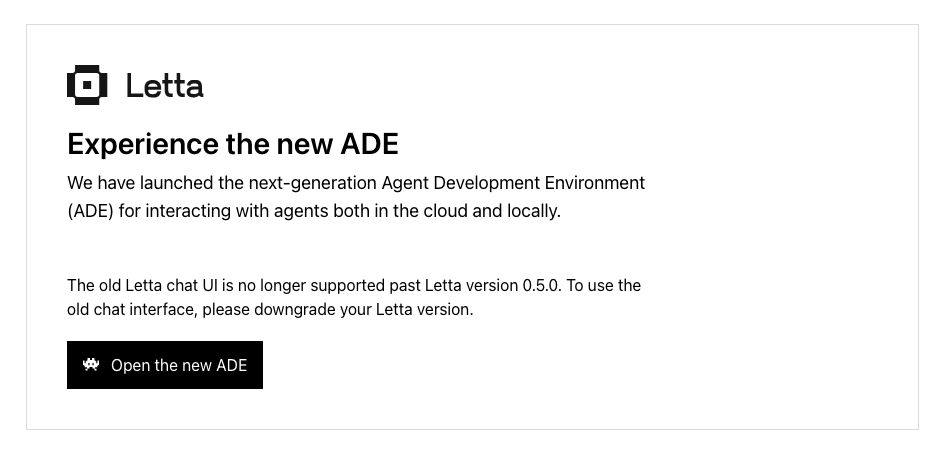
- ADE (Agent Development Environment) at app.letta.com — a web-based playground for experimenting with different configurations
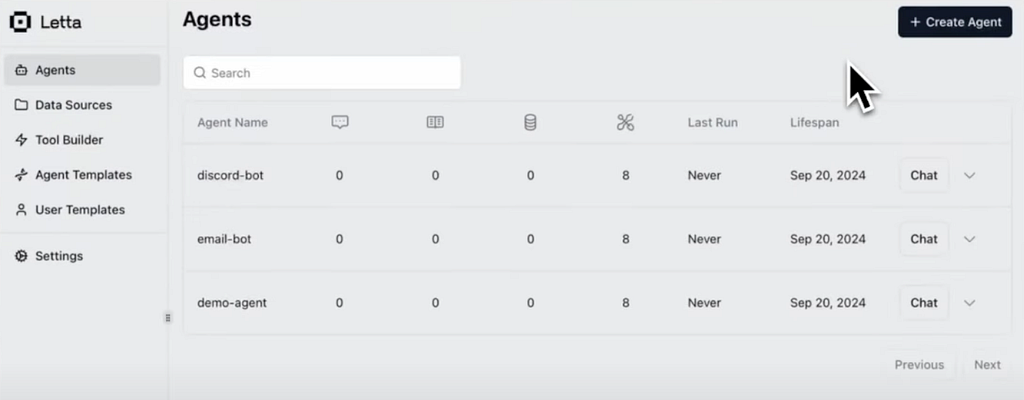
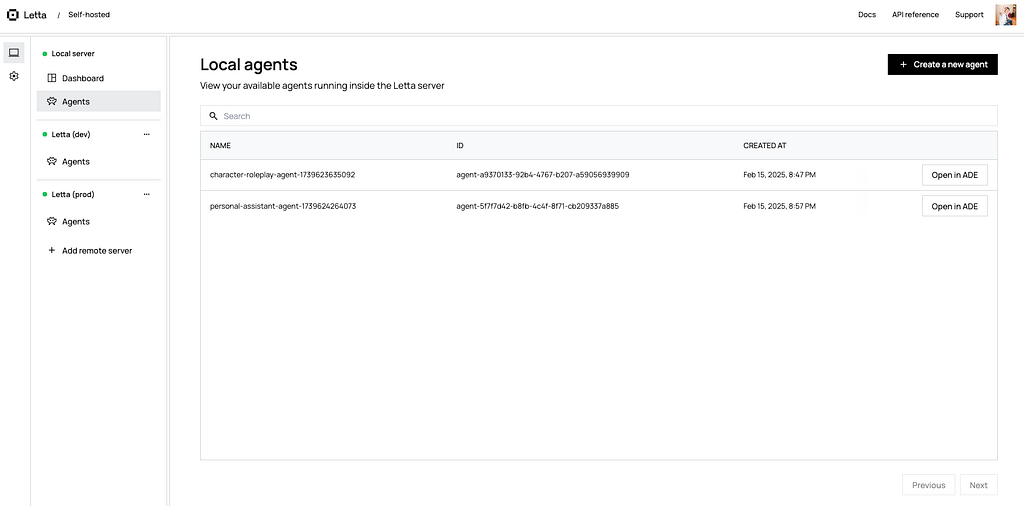 The legacy ADE vs the new ADE
Note: While Letta runs locally, the ADE interface is now cloud-only (as of version 0.5.0). This follows a similar model to Darwin/MacOS, providing a commercial interface while keeping the core technology open source.
Deploying Letta to Railway
The fastest way to deploy Letta to Railway is using the official template.
- Click the “Deploy Now” button on the template page
- Railway will automatically configure the environment with the correct Dockerfile and settings
- Add your OPENAI_API_KEY in the environment variables
Note: The template link includes my referral code. If you end up becoming a paid Railway user through this link, I’ll receive a $5 credit. Feel free to remove the referral code if you prefer!
While I’m using Railway here because it’s my preferred serverless platform, Letta is ultimately just a Docker image. This means you can deploy it anywhere that runs containers:
- Other serverless platforms (Render, Fly.io, etc.)
- Traditional VPS providers
- Kubernetes clusters
- Your own infrastructure
The deployment choice comes down to your existing setup and preferences. The template is just a convenient starting point if you’re using Railway.
The Problem with Railway’s Internal PostgreSQL
When deploying Letta on Railway, you’ll encounter an issue accessing the internal PostgreSQL database. The Docker image doesn’t expose port 5432 (which is a secure practice for cloud deployments), but this means you can’t access it either.
While Railway provides a TCP proxy for such cases, attempting to connect through it results in an error:
failed: received invalid response to SSL negotiation: H
This is likely due to Railway’s proxy configuration being in HTTP mode.
Initially, this seemed like a major roadblock. Letta’s documentation recommends using the internal database and warns that external database setup might require migration tools like alembic or manual migrations.
However, after consulting the Discord community, it turns out using an external database is actually quite simple. All you need to do is:
- Set up your external PostgreSQL database
- Set the environment variable LETTA_PG_URI with your connection string
The Docker image handles all migrations automatically. No manual intervention required.
Setting Up External PostgreSQL with Supabase
Setting up Supabase as your external database for Letta requires a few steps:
- Create a new project in Supabase
- Enable vector support by running this SQL command in Supabase’s SQL editor:
create extension vector;
This is required because Letta uses vector search for memory retrieval, and PostgreSQL needs the vector extension to support this data type.
- Get your connection string from:
- Project Settings → Database
- Copy the connection string under “Connection pooling”
- Replace [YOUR-PASSWORD] with your database password
- Back in Railway, add the environment variable:
LETTA_PG_URI=postgresql://<username>:<password>@<postresql_uri>:5432/postgres
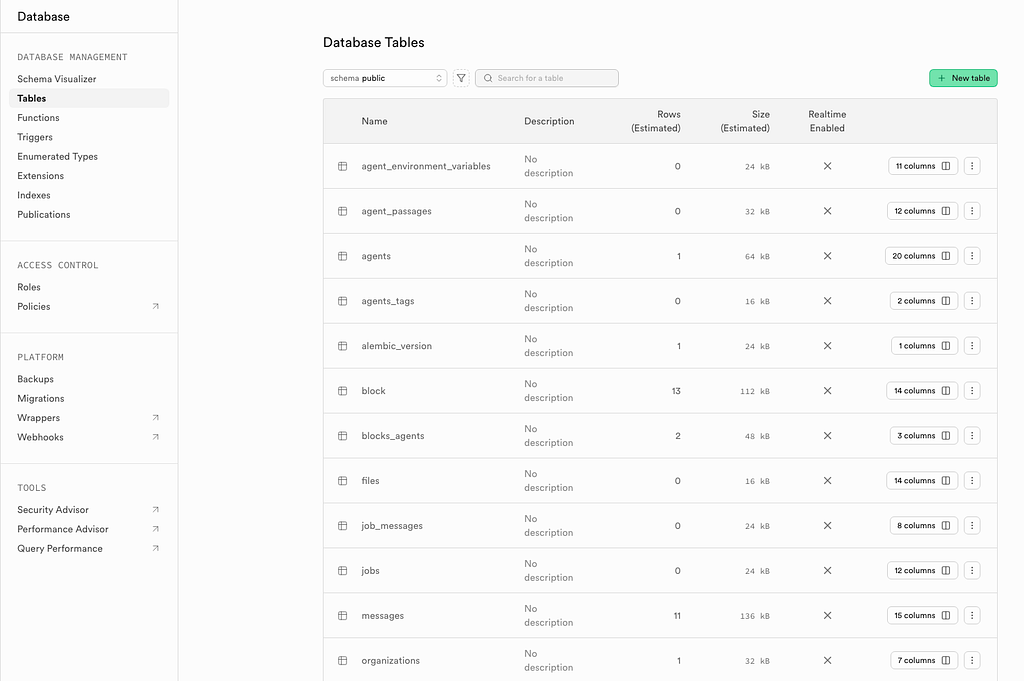
That’s it! After enabling the vector extension, Letta will handle all other setup tasks automatically when it first connects. If all goes well you’ll see something like this in your Supabase tables section.
Final Thoughts
A few important things to note about Letta:
- The project is under active development with frequent changes:
- The Python SDK has moved from letta to letta_client
- Their Deeplearning.ai course uses the legacy SDK
- Internal structures like table schemas may change (e.g., recall memory being merged with archival memory, correct me if I’m wrong)
- Core tools have been reduced from 8 to 6
- While the core is open source, some components are becoming commercial:
- Local ADE is no longer supported
- You’ll need to use app.letta.com for the development interface
- There’s also Letta Cloud which handles all the deployment and infrastructure for you, though it’s not publicly available yet (you can join the waitlist at https://forms.letta.com/early-access)
- Production readiness considerations:
- MemGPT/Letta has only been around for about a year
- The agent/context/memory management approach is still experimental
- While promising, there aren’t many (if any) production use cases yet
- Use at your own risk for production deployments
- Model support varies:
- Only OpenAI and Claude currently support streaming
- Streaming is disabled for other models like Gemini
- Keep this in mind when choosing which LLM to use
I’ve only recently started exploring this framework myself, so I’m not an expert. However, I’ve found their Discord server to be very active and supportive. If you run into issues or have questions, that’s the best place to get help from the community and the development team.
The project shows promise in solving the LLM memory management challenge, but be prepared for changes and consider carefully before using it in production environments. Keep an eye on their Discord server and GitHub for the latest updates and changes. If you liked this and want more AI, tech, or updates on my AI-powered ebook reader, Nekobun, follow me on X at @CalvinJianbaiKU. I’d love to connect and exchange ideas!
Originally published on Medium.